
Write and publish an entry
From opening the editor to typing, saving, and switching between draft and published.
Open the editor
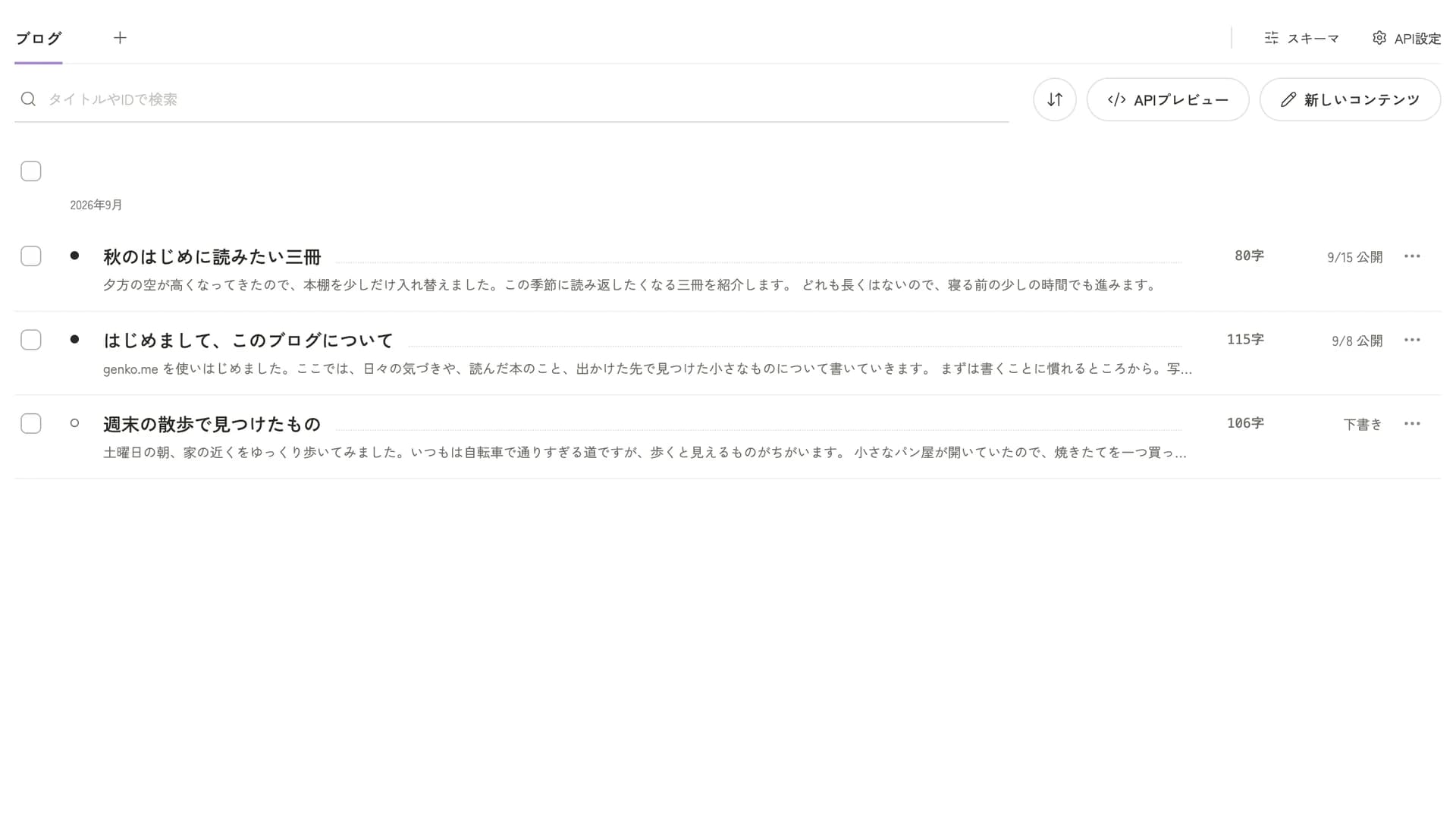
In the dashboard, choose the API you want to write in (such as "Blog") and select "New content". To edit something you wrote, select its title in the list.
Write
The fields you fill in are set in advance for each API. A field marked "Required" can't be left empty.
In the body field, Enter starts a new paragraph, and Shift+Enter breaks a line within the same paragraph. When you select text, a small toolbar appears. You can choose bold, italic, headings, links, and bulleted lists.
Save
Select Save at the top of the screen, and confirm the label changes to Saved. Typing alone doesn't save. If you try to close without saving, a prompt appears, and you can save from there.
On every plan, you can look back at what you saved from "History". To restore an earlier version, the workspace must be on Plus or Pro.
Draft and published
Saving alone doesn't put it on the site. You decide whether it appears on the site with the "Publication status".
| Publication status | How it looks on the site |
|---|---|
| Draft | It doesn't show. A draft in progress is in this state |
| Published | It shows |
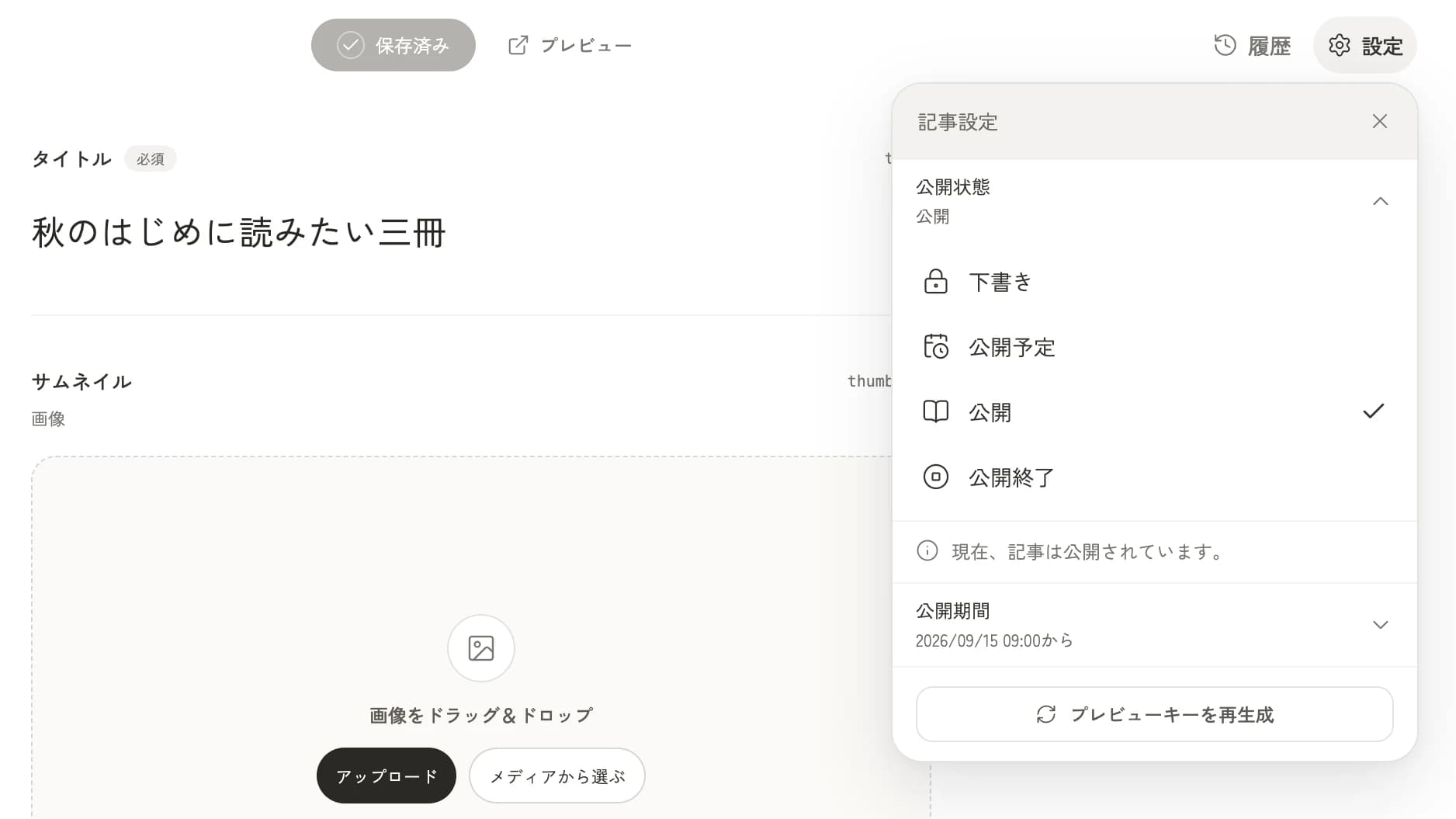
Select "Settings" at the top right, then choose from "Publication status". After you choose, select Save again. It only switches once you save.
If you edit a published entry and save, the new content goes straight to the site. To save work in progress without changing the site, choose "Save as draft" from the "▾" next to Save. The site keeps showing the published content, and the saved changes appear as "Unpublished changes" that you can pick up again the next time you open the entry. Use "View diff" to compare them with the published content, then select Save to publish them or "Discard changes" to drop them.
If you want to decide the date and time first and publish then, read Choose when to publish.
Check and close
Select Preview to see how it looks on the real site. It shows saved content, so save first. If you see "Preview URL not set", the site side isn't ready yet, so ask your Owner.
When you finish editing, select the × at the top left.
Last updated: October 16, 2026