
Add images
How to put photos in the body or an image field, how to write alt text, and how to replace an image.
Add an image
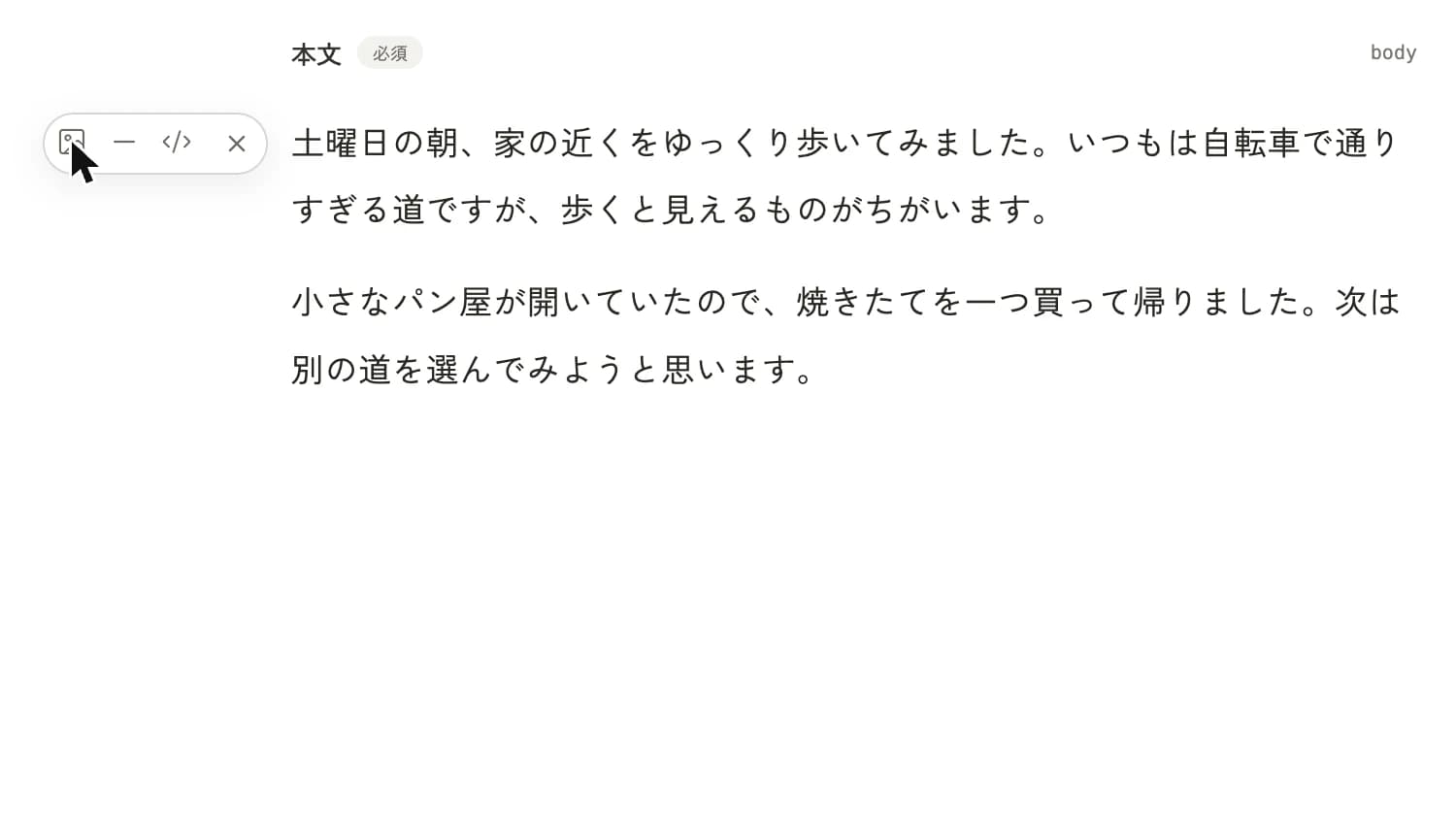
While you write the body, a round "+" appears beside the line. Select it and choose the image icon to make a spot for an image in the body. Click that spot and choose a file, or drag and drop a file onto it.
If there's a field just for an image, such as under the title, you can add one the same way: click, or drag and drop.
You can't save while an upload is in progress. Wait until Save can be selected.
Write alt text
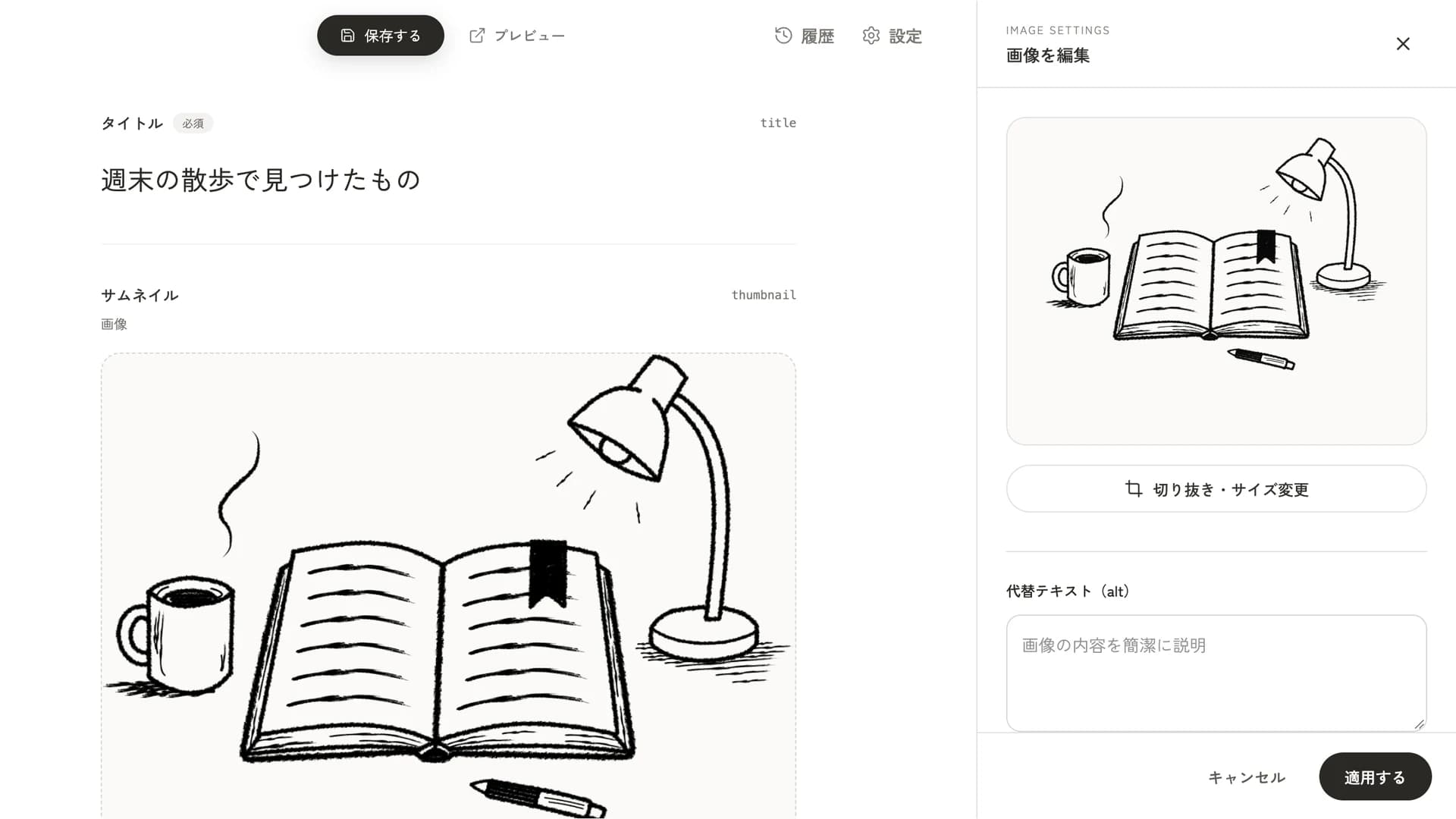
Select "Edit image" above the image and the settings open on the right of the screen. Use "Crop or resize" to choose the area to crop, enter alt text, and select Apply.
Alt text is a short description shown in place of the image when it can't be displayed. Screen readers used by people who can't see also read this text aloud. In the field that says "Briefly describe the image", write what the image shows in one sentence. If the image is only decoration, you can leave it empty.
If you forget, "Alt text not set" appears under the image.
Replace an image
To change the image in this entry only, select "Change image" above the image and choose again.
If the same image is used in several entries and you want to swap in a new photo for all of them, select the workspace name at the top of the screen, open "Media", choose the file, select "Replace", choose a file, and select "Replace" again. This applies to every entry that uses the image.
You can't delete an image that's used in any entry. Remove it from the entries first, and save.
An image's URL stays open to anyone, even if you set the entry back to a draft. Don't upload material you can't show to others.
Last updated: October 6, 2026