
Sign in and take your first steps
How to sign up and sign in to genko.me, how to read the dashboard you see first, and what a workspace is.
Sign in
Open genko.me and enter your email address and password. If you see a Google or GitHub button, you can also sign in with that account. If you've registered a passkey, choose "Sign in with a passkey".
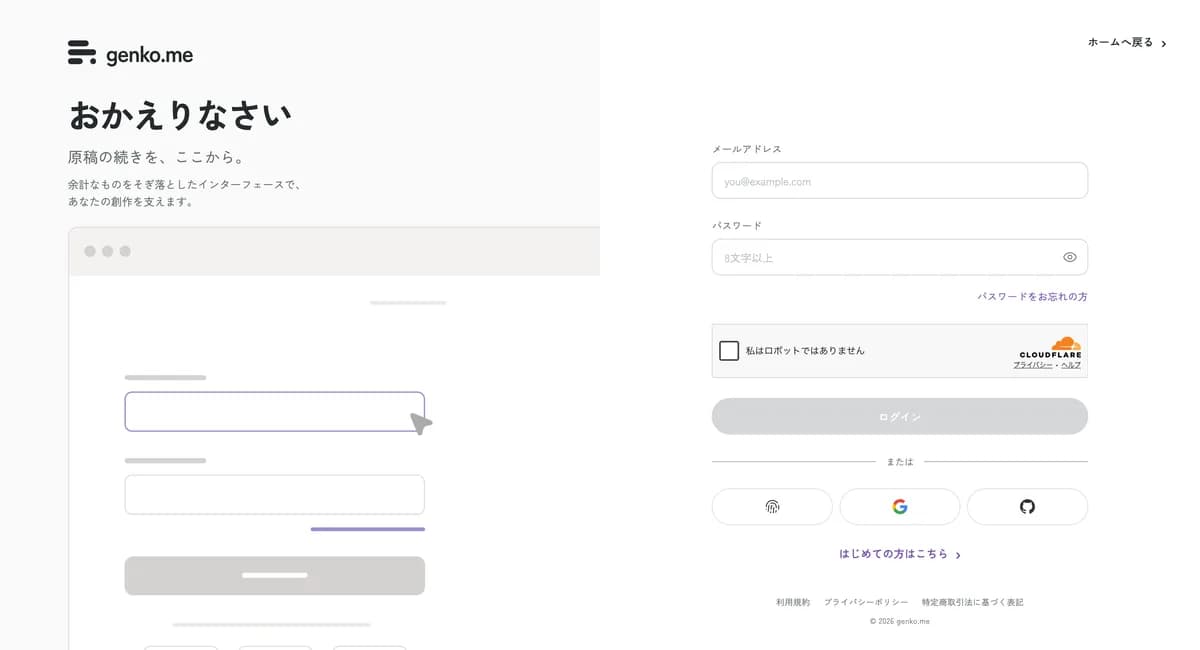
When you sign up for the first time
After you sign up, you go through three steps in order.
- Confirm your email: enter the 6-character code of letters and numbers sent to your email. It expires in 10 minutes.
- Choose your personal workspace ID: enter a name of 3 or more characters using lowercase letters, numbers, and hyphens, then select "Start with this ID". You can't change it later, so choose one that's short and easy to understand.
- Choose a plan: you can start for free. To stay on the free plan, select "Start with this plan". You can change plans later in settings.
If you signed up after being invited to a team, you return to the invitation screen after you choose your ID.
To stop signing up, you can delete the account with "Do not create account" on the ID screen. An account that still has no ID after 24 hours is deleted automatically.
How to read the dashboard
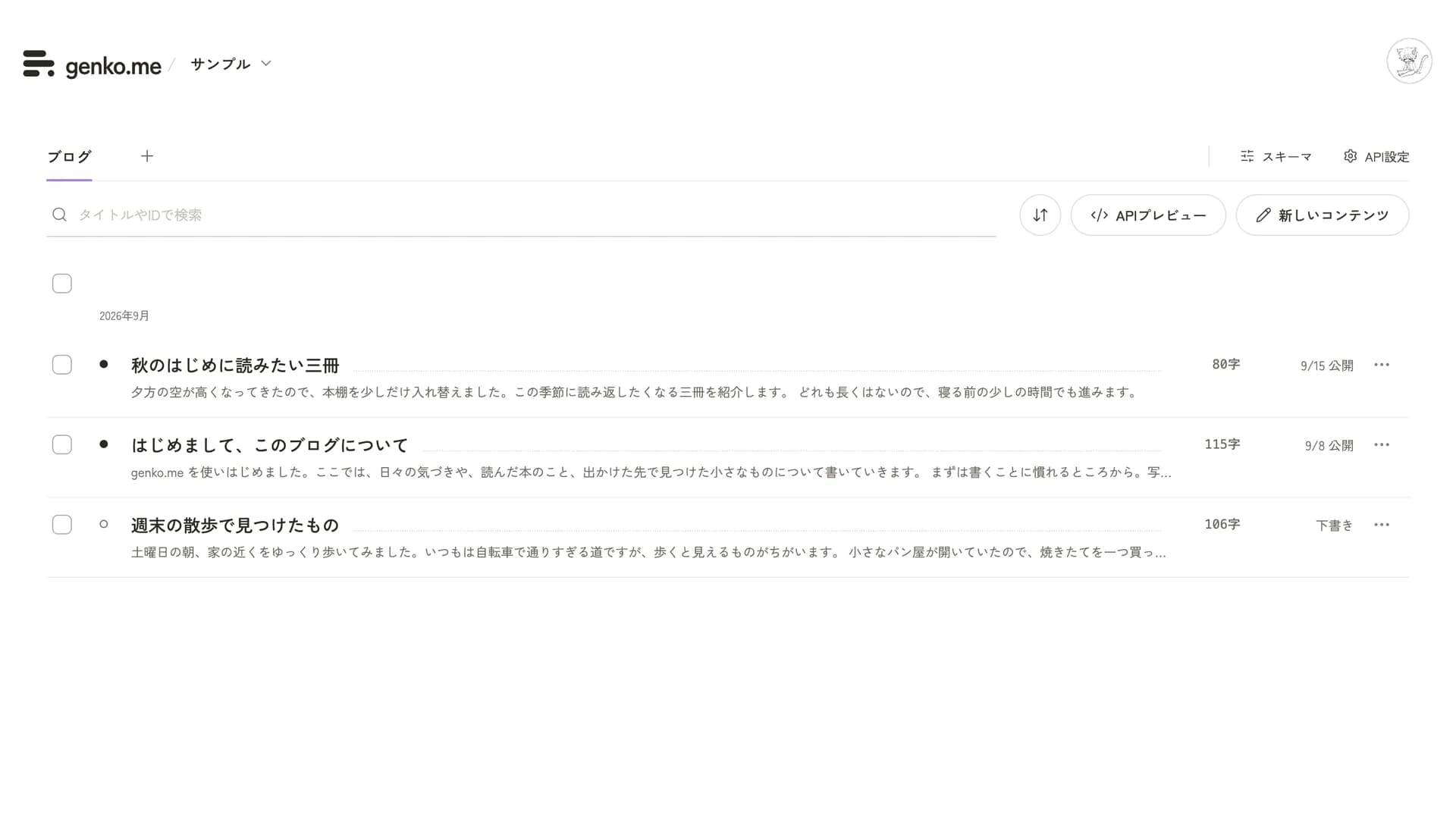
When you sign in, the dashboard opens. Along the top, API names are lined up like tabs, and below them is the content list for the API you selected.
An API is like a drawer that holds drafts with the same shape, such as "Blog" or "Announcements". Owners create them, so if you write, you only need to pick one from the tabs.
At the top left of the screen is the name of the workspace you have open. Select it to open this menu.
- Media: the list of images and files you uploaded
- Settings and plan: the people you work with ("Members"), and your plan and usage
- The list of workspaces: switch to another workspace
From the round icon at the top right, you can choose account settings, the screen's color scheme (theme), and Sign out.
What is a workspace
A workspace is a place to work. There's a "personal workspace" that you use alone, and a "team" that several people use. Content, images, and members are separate in each workspace and never mix.
Next, go to Write and publish an entry.
Last updated: October 6, 2026