
Invite people to work together
How to create a team and invite members, and what Owners, Editors, and Viewers can do.
Create a team first
To work on the same entries with several people, create a team. Select the workspace name at the top of the screen and choose "+ Create a team". Enter a "Name" and an "ID", choose "Create for free" as the plan, and select Create. This makes a workspace for that team.
The ID is the name used in URLs, and you can't change it later.
Invite people
Only Owners can send invitations.
- Switch to the team you want to invite people to, select the workspace name, and choose "Settings and plan".
- Open the Members tab and select "Invite members".
- Enter the person's email address and choose a role (Maintainer, Editor, or Viewer).
- Select "Send invitation".
- Have them join by selecting "Accept invitation" from the link in the email they receive.
An invitation email is valid for 7 days. If you send another to the same person, the earlier email stops working, so ask them to open the newest one.
You can invite people who don't have a genko.me account. In that case, they sign up with the email address you sent the invitation to.
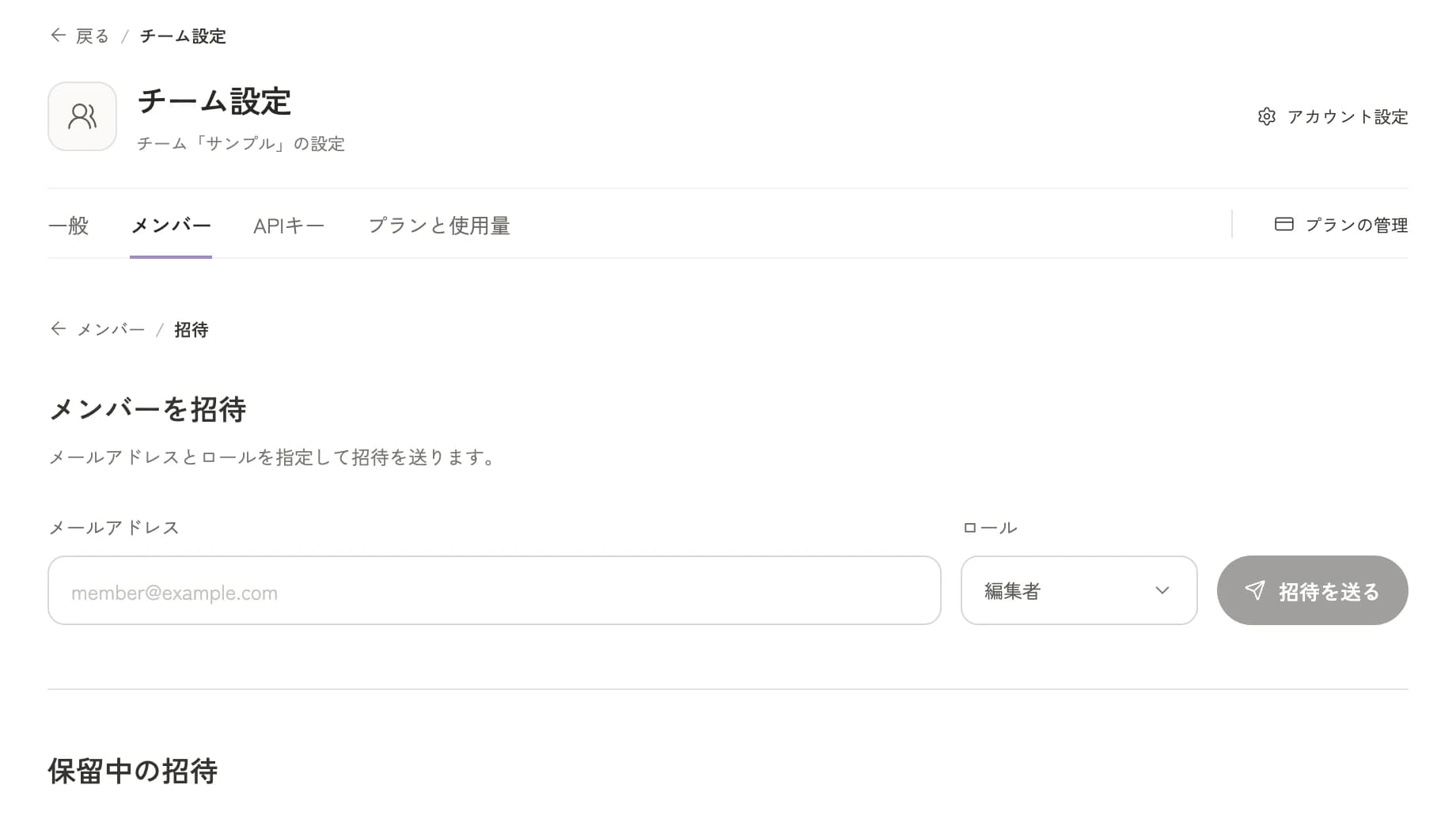
If you send an invitation by mistake, you can cancel it with "Cancel" under "Pending invitations".
The four roles
| Role | What they can do |
|---|---|
| Owner | Everything. They can also invite people, manage members, set up APIs, manage API keys, and change plans |
| Maintainer | Manage APIs, schemas, API keys, webhooks, languages, and content. They can't manage members or billing |
| Editor | Create, edit, and delete content and images, and change the publication status |
| Viewer | View content only |
Choose Editor for people who write, Maintainer for people who should also look after the site's settings and APIs, and Viewer for people who only review. Editors can publish and delete, so it helps to decide within the team who makes the call on publishing.
You can change a role later. On the Members tab, select "⋯" on the person's row, then "Change role".
When you can't invite someone
A free team is limited to 3 people including the Owner, a Plus team to 10, and a Pro team to 30. A pending invitation also counts as one person. If you can't invite someone even though the team is small, check "Pending invitations" on the "Invite members" screen and cancel any you don't need.
Last updated: October 16, 2026