
Choose when to publish
How to publish at a set date and time, set when an entry stops showing, and check whether it's live right now.
Publish at a set date and time
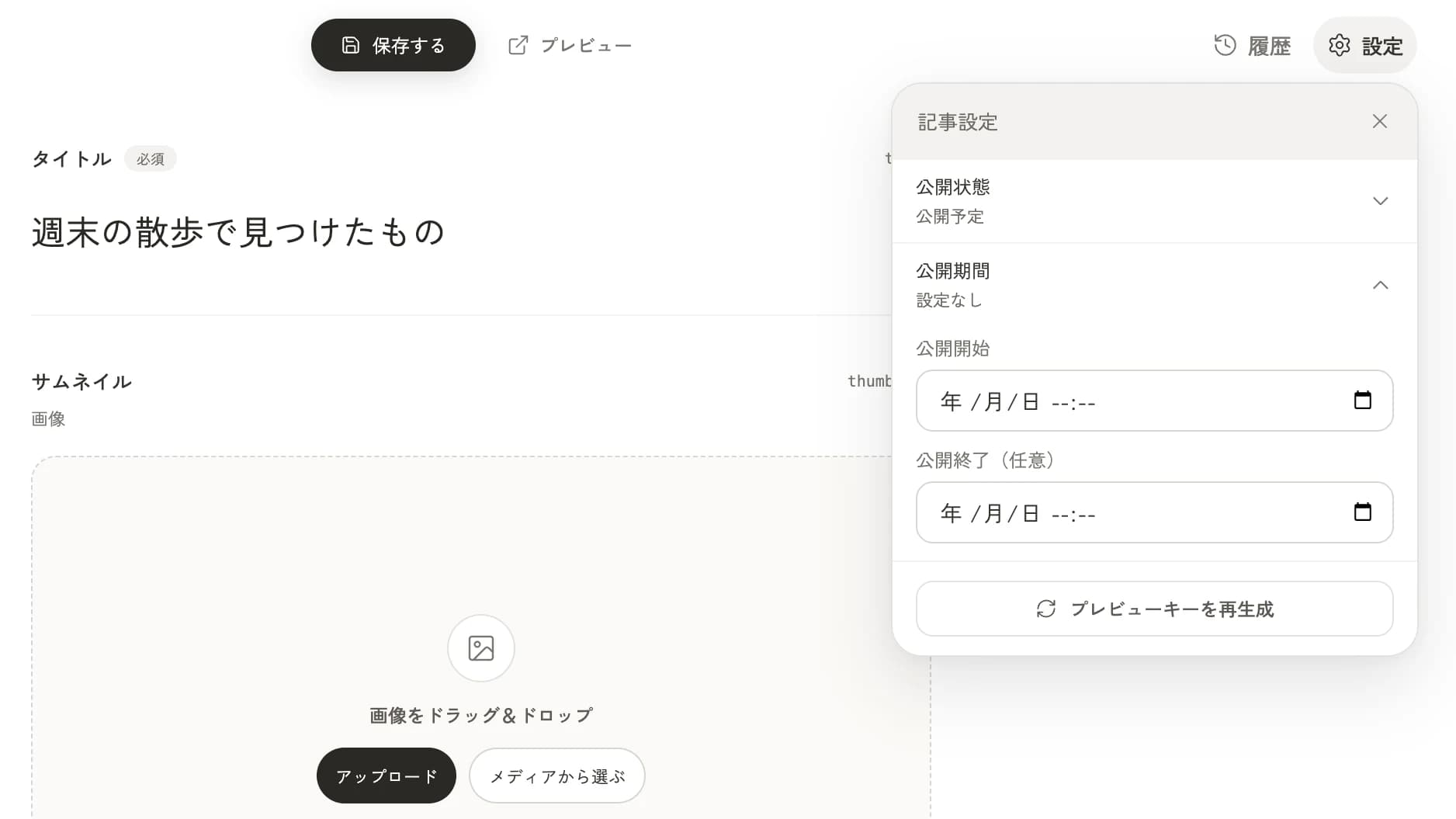
- Write the entry and open Settings at the top right.
- Choose "Scheduled" under "Publication status".
- Enter a date and time in "Publish from" under "Publication window".
- Select Save.
When the time comes, it switches to Published automatically. Entering a date and time alone doesn't set it. Finish by saving.
You can also set when it stops showing
If you enter a date and time in "Unpublish at (optional)" under "Publication window", the entry disappears from the site at that time. The entry itself isn't deleted, so you can publish it again later.
Dates and times are shown and entered in the time zone you chose in account settings. If you work with people overseas, watch out for the time difference.
Check whether it's live now
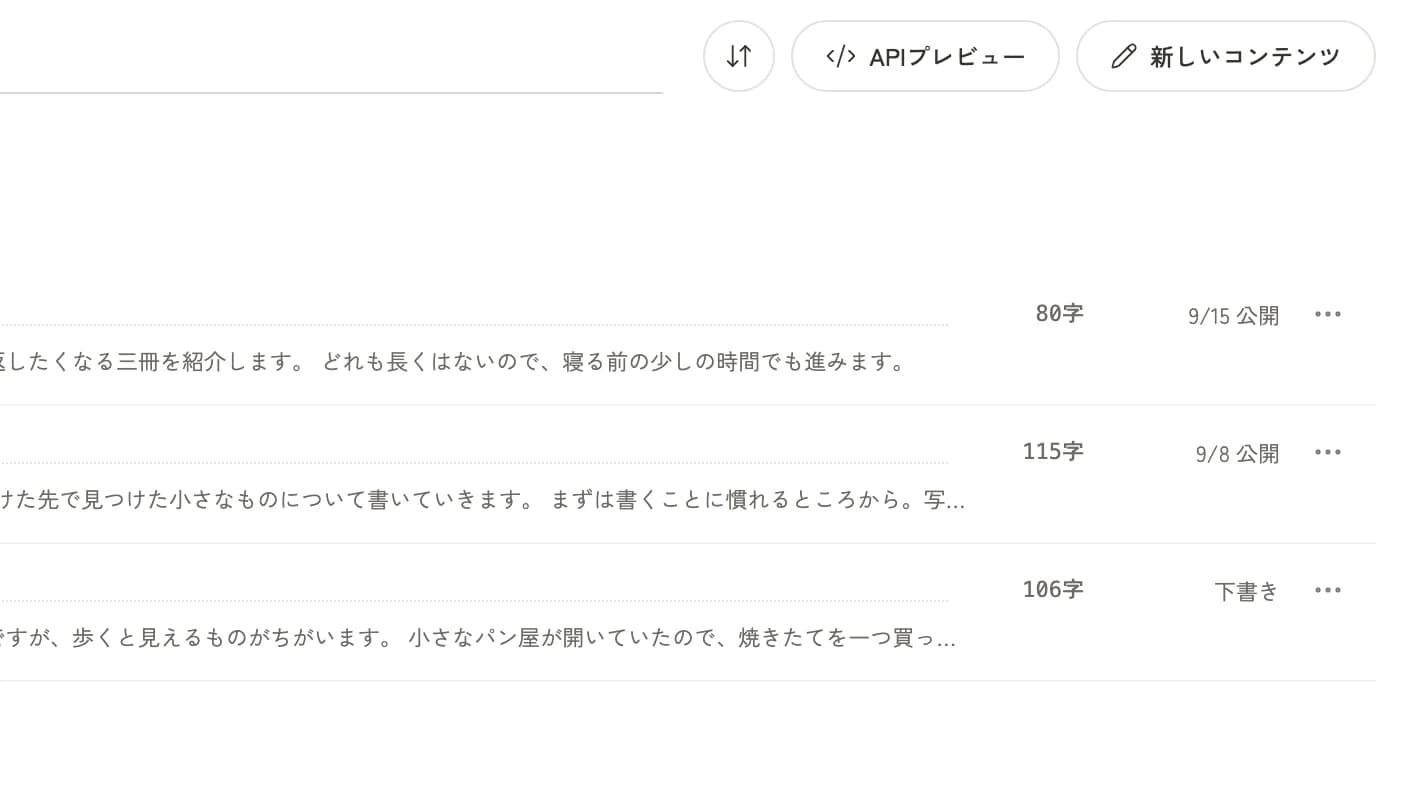
In the content list, each row shows one of "Draft", "Published", "Scheduled", or "Unpublished". If it says "Published", the entry is showing on the site.
Open an entry and look at Settings to see its publication status and the publication window you set. For a published entry it says "This entry is published."
When nothing changes at the set time
It can take about a minute for the dashboard to switch. Wait a little, then reload the screen.
If your site still doesn't change, the cause may be on the site's side. Ask the person who built the site to check Scheduled publishing and unpublishing.
To cancel a schedule, set the status back to "Draft" and save.
Last updated: October 6, 2026